Introduction
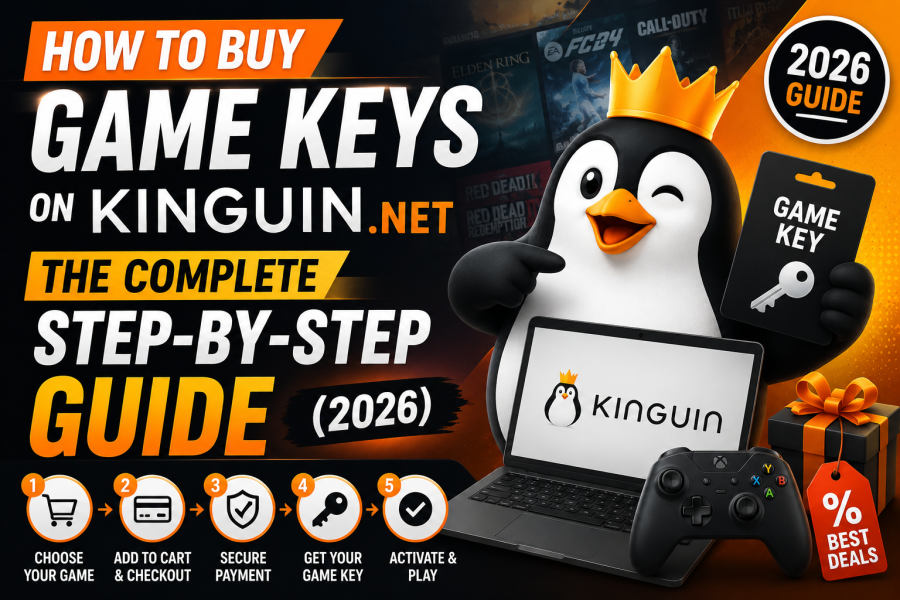
Buying a game key on Kinguin.net takes less than five minutes once you know the process, but skipping a single step, like checking a seller’s rating or picking the wrong region key, is exactly how first-time buyers run into trouble. This guide walks through the entire purchase process from start to finish: Finding the right listing, paying safely, redeeming your key, and fixing the most common issues before they happen.
Whether this is your first Kinguin order or you just want a refresher on best practices, this walkthrough covers everything you need.
Before you start: What you need
- A Kinguin account (free to create with an email or Google/Facebook login)
- A payment method: Credit/debit card, PayPal, Skrill, or a supported local payment option
- The platform account where you’ll redeem the key (Steam, Epic Games, Origin/EA App, Ubisoft Connect, GOG, or Microsoft)
- Five to ten minutes, start to finish
Step 1: Search for the product
Use the search bar at the top of Kinguin.net and type the exact game, software, or gift card name. For popular titles, Kinguin often shows multiple platform versions (Steam, Epic, GOG). Make sure you select the version that matches the platform you actually want to play on. Buying a GOG key when you wanted a Steam key is one of the most common first-time mistakes.
Step 2: Compare seller listings
Every product page on Kinguin lists offers from multiple independent sellers, not just one fixed price. For each listing, check:
- Price: Sorted from lowest by default
- Seller rating: Shown as a percentage; aim for 95% or higher
- Number of completed sales: Higher counts indicate a more established, trustworthy seller
- Region restrictions: Listed directly on the offer; make sure the key works in your country
- Stock availability: Low stock can mean slower delivery on some listings
Tip: The cheapest offer is not always the best choice. A seller with a slightly higher price but a stronger track record is usually worth the extra dollar.
Step 3: Add Buyer Protection
At checkout, Kinguin offers an optional Buyer Protection add-on for a small percentage of the order total. This guarantees a refund or replacement if the key doesn’t work, is already used, or is invalid. For new sellers or first-time purchases, this is worth adding every time: It removes almost all the risk from the transaction.
Step 4: Choose your payment method
Kinguin supports a range of payment options depending on your country, typically including:
- Credit and debit cards (Visa, Mastercard)
- PayPal
- Skrill
- Local payment methods (varies by region)
Enter your payment details directly on Kinguin’s checkout page, never on a page you were redirected to from an external link or ad, which is a common tactic in phishing scams unrelated to Kinguin itself.
Step 5: Complete the purchase and receive your key
Once payment is confirmed, your key appears instantly in your Kinguin account under “My Orders,” and is also emailed to you. If the key doesn’t appear within a few minutes, check your spam folder before contacting support.
Step 6: Redeem your key on the correct platform
Redemption steps vary slightly depending on where the key is for.
Steam
- Open the Steam client and log in.
- Click “+ Add a Game” in the bottom-left corner.
- Select “Activate a Product on Steam.”
- Paste in your key and follow the prompts.
Epic Games Store
- Open the Epic Games launcher.
- Click your profile icon, then “Redeem Code.”
- Enter the key and confirm.
Origin / EA App
- Open the EA App and sign in.
- Go to “Redeem Code” from the account menu.
- Enter your key.
Microsoft (Windows/Office keys)
- Go to account.microsoft.com and sign in.
- Navigate to “Redeem a Code.”
- Enter the 25-character key.
Common mistakes to avoid
- Buying the wrong platform version: Always double-check Steam vs. Epic vs. GOG before purchasing.
- Skipping Buyer Protection to save $1–2: This is the single biggest cause of unresolved disputes.
- Ignoring region locks: Some keys are restricted to specific countries and won’t activate outside them.
- Sharing your key publicly before activating it: Screenshots or forum posts can expose your key to theft.
- Paying outside Kinguin’s official checkout: Never enter card details on a third-party page claiming to be “Kinguin support.”
What to do if a key doesn’t work
- Take a screenshot of the exact error message.
- Go to “My Orders” in your Kinguin account and open a dispute on the relevant order.
- If you purchased Buyer Protection, you’re entitled to a replacement key or a full refund.
- Without Buyer Protection, contact the seller directly through Kinguin’s messaging system first: Most reputable sellers resolve issues within 24–48 hours.
Frequently asked questions
How long does it take to receive a key after payment? Delivery is instant in the vast majority of cases: Keys typically appear within seconds to a few minutes of payment confirmation.
Can I get a refund if I bought the wrong platform version? This depends on the seller’s individual policy, since keys are non-refundable once revealed in most cases. Always double-check the platform before completing your purchase.
Is it safe to pay with a credit card on Kinguin? Yes. Payments are processed through Kinguin’s own secure checkout, the same standard used by major e-commerce platforms.
Do I need to create a Kinguin account before buying? Yes, an account is required to track your order, access your key, and use Buyer Protection or dispute resolution if needed.
What happens if my key region doesn’t match my Steam account region? The key typically will not activate. Always check the region restriction listed on the product page before purchasing.
Final thoughts
Buying on Kinguin is straightforward once you understand the marketplace model: Compare sellers, add Buyer Protection on new or unproven listings, and redeem your key on the correct platform. Following the steps above takes the guesswork out of the process and helps you avoid the handful of mistakes that cause most buyer complaints.